 HSE.myUser Guide
HSE.my · PUBLIC USER GUIDE
Safety assurance & improvement
Report signals, control risk, investigate, improve and verify that work is safe.
Search this category by module, function, role or example scenario.
SAFETY
Safety assurance & improvement
Report signals, control risk, investigate, improve and verify that work is safe.
01 SAFETYReport EventReport an incident, near miss, unsafe condition or occupational event with evidence and location.
What you can do
- Report an incident, near miss, unsafe act, unsafe condition, observation or environmental event.
- Capture immediate action, location and permitted photographic/GPS evidence.
- Submit the intake; the Event Case workspace becomes the authoritative follow-up record.
Authorized role examples
Any authenticated organization user; public guest reporting is available only where enabled by the organization.
Example scenario
A technician sees an unsecured cable route. They submit an unsafe-condition report with a photo, GPS and immediate barricade action; the safety team then owns the Event Case follow-up.
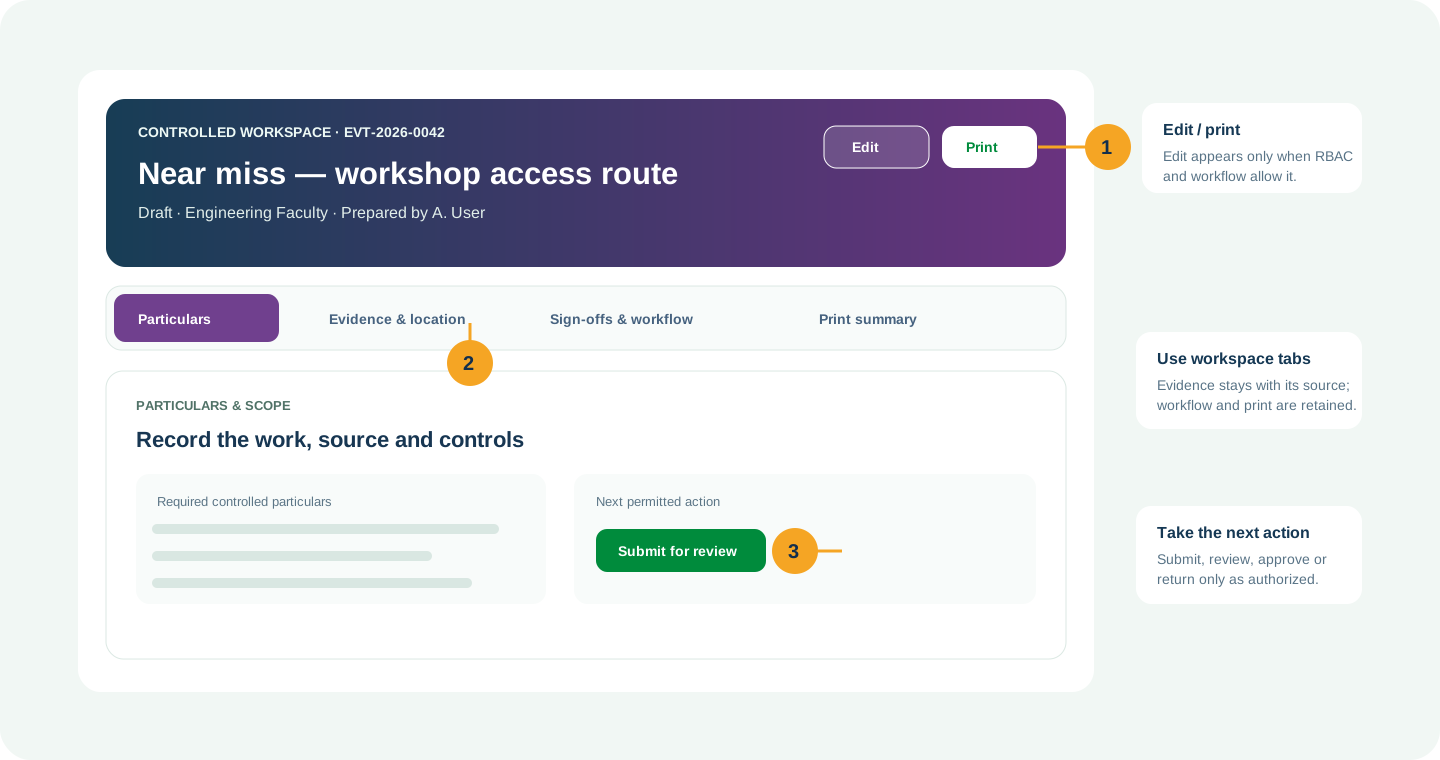
ANNOTATED CLICK GUIDE
Complete the report facts, attach permitted evidence, then select Submit report. The Event Case owns follow-up.


/workspace/safety/report-event- Tap Safety in the bottom navigation, or tap More to open the module picker.
- Use search in the module picker, then select Report Event.
- On the register, tap Open Workspace for the record or use New only when your role allows it.
Hard delete is never the normal lifecycle for a controlled record. Once used, submitted, approved, linked, printed or evidenced, use amendment, revision, void, retirement, archive or supersede with a reason.
02 SAFETYEvent RegisterOrganization-bound register of every reported safety event.
What you can do
- Search, filter and open the controlled records available to your organization-unit scope.
- Use Open Workspace to view details, related records, evidence, workflow history and permitted follow-up.
- Use the owning workspace for amendments, workflow decisions and re-printing.
Authorized role examples
Reporter, Supervisor, Safety Officer, HSE Manager, Investigator, Action Owner and Independent Verifier. Roles must be active and scoped to the relevant organization unit.
Example scenario
Example: A site needs to organization-bound register of every reported safety event The authorized user opens Event Register, completes the controlled record and follows the required workflow.
ANNOTATED CLICK GUIDE
Find the event in the register and select Open Event Case for controlled follow-up.


/workspace/safety/event-register- Tap Safety in the bottom navigation, or tap More to open the module picker.
- Use search in the module picker, then select Event Register.
- On the register, tap Open Workspace for the record or use New only when your role allows it.
This register is a controlled entry point/history view. Use the designated workspace to create or maintain the source record.
03 SAFETYIncident and InvestigationEstablish facts, causal factors, root causes and lessons learned.
What you can do
- Open the related Event Case and establish facts, chronology, causes, findings and lessons learned.
- Link affected JSA steps/controls and request review where a persistent risk is identified.
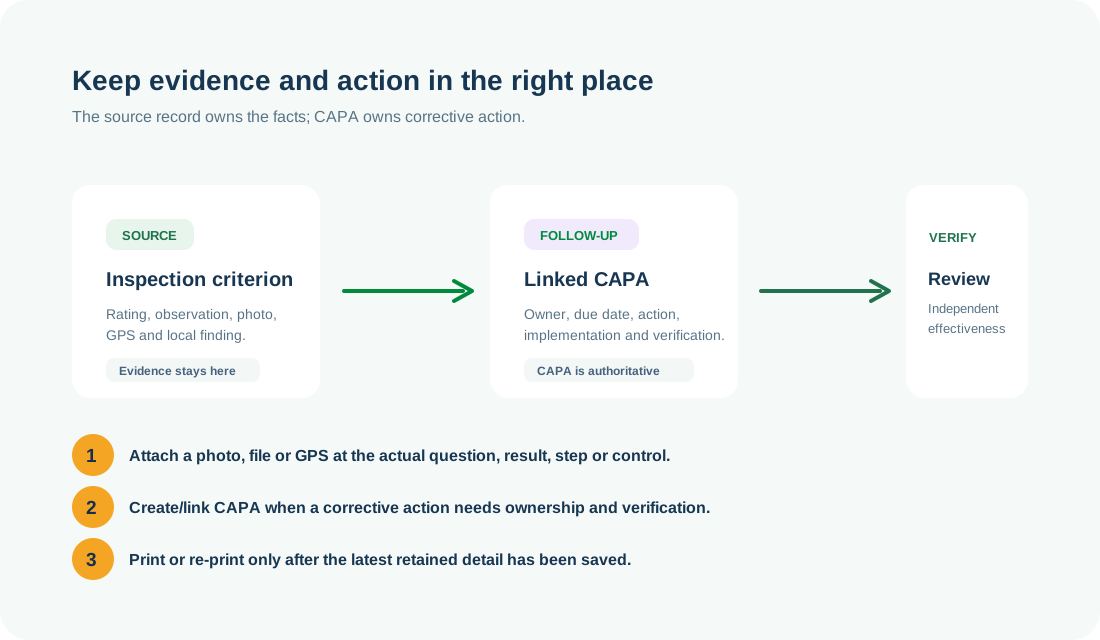
- Create or link CAPA; investigation never replaces CAPA as the action workflow.
Authorized role examples
Reporter, Supervisor, Safety Officer, HSE Manager, Investigator, Action Owner and Independent Verifier. Roles must be active and scoped to the relevant organization unit.
Example scenario
Example: A site needs to establish facts, causal factors, root causes and lessons learned The authorized user opens Incident and Investigation, completes the controlled record and follows the required workflow.
ANNOTATED CLICK GUIDE
Record facts and findings first; link a CAPA for corrective work rather than keeping a parallel action list.


/workspace/safety/investigations- Tap Safety in the bottom navigation, or tap More to open the module picker.
- Use search in the module picker, then select Incident and Investigation.
- On the register, tap Open Workspace for the record or use New only when your role allows it.
Hard delete is never the normal lifecycle for a controlled record. Once used, submitted, approved, linked, printed or evidenced, use amendment, revision, void, retirement, archive or supersede with a reason.
04 SAFETYCorrective and Preventive ActionAssign, implement and independently verify corrective and preventive actions.
What you can do
- Assign a corrective, preventive or containment action to an accountable owner and due date.
- Record implementation evidence and independent effectiveness verification.
- Print or re-print the controlled CAPA summary and retain linked-source traceability.
Authorized role examples
CAPA Creator, Action Owner, HSE Manager and an Independent Effectiveness Verifier.
Example scenario
Example: A site needs to assign, implement and independently verify corrective and preventive actions The authorized user opens Corrective and Preventive Action, completes the controlled record and follows the required workflow.
ANNOTATED CLICK GUIDE
The action owner records implementation evidence here; an independent verifier completes effectiveness verification.


/workspace/safety/capa- Tap Safety in the bottom navigation, or tap More to open the module picker.
- Use search in the module picker, then select Corrective and Preventive Action.
- On the register, tap Open Workspace for the record or use New only when your role allows it.
Hard delete is never the normal lifecycle for a controlled record. Once used, submitted, approved, linked, printed or evidenced, use amendment, revision, void, retirement, archive or supersede with a reason.
05 SAFETYHIRARCIdentify hazards, assess risks and establish verifiable controls before work starts.
What you can do
- Define assessment scope, hazards, initial risk, existing/additional controls and residual risk.
- Link approved HIRARC controls to JSA, SWP, PTW and CAPA without overwriting source history.
- Submit for independent review, approval, revision and controlled print.
Authorized role examples
Risk Assessor/Preparer, HSE Reviewer and Independent Approver.
Example scenario
Example: A site needs to identify hazards, assess risks and establish verifiable controls before work starts The authorized user opens HIRARC, completes the controlled record and follows the required workflow.
ANNOTATED CLICK GUIDE
Use the highlighted workspace action to save the assessment before review, approval or controlled revision.


/workspace/safety/hirarc- Tap Safety in the bottom navigation, or tap More to open the module picker.
- Use search in the module picker, then select HIRARC.
- On the register, tap Open Workspace for the record or use New only when your role allows it.
Hard delete is never the normal lifecycle for a controlled record. Once used, submitted, approved, linked, printed or evidenced, use amendment, revision, void, retirement, archive or supersede with a reason.
06 SAFETYJob Safety AnalysisPlan a task-specific sequence of work, hazards, verifiable controls and briefing before work begins.
What you can do
- Plan task steps, hazards, critical controls, evidence/location and worker briefing for one defined job.
- Select matching approved HIRARC and SWP; record environmental controls without duplicating their source records.
- Approve and brief the exact revision before PTW activation; supersede instead of silently overwriting a used revision.
Authorized role examples
JSA Preparer, Supervisor, Independent Approver and Work Party Member for briefing/sign-on.
Example scenario
Before electrical maintenance begins, the supervisor prepares a JSA linked to the approved electrical HIRARC and SWP, briefs the work party, then the permit can be activated.
ANNOTATED CLICK GUIDE
Record task steps and controls, then save the JSA before approval, briefing and PTW use.


/workspace/safety/jsa- Tap Safety in the bottom navigation, or tap More to open the module picker.
- Use search in the module picker, then select Job Safety Analysis.
- On the register, tap Open Workspace for the record or use New only when your role allows it.
This register is a controlled entry point/history view. Use the designated workspace to create or maintain the source record.
07 SAFETYInspectionsPerform item-level scheduled inspections with findings and evidence.
What you can do
- Start an inspection from a checklist template and answer criteria using the 0–5 or N/A method.
- Attach evidence and location to the applicable question, then create findings and linked CAPA.
- Use Environment checklist templates here for new environmental inspections.
Authorized role examples
Inspector, Checklist Template Administrator, HSE/Environment Manager and CAPA Owner.
Example scenario
Example: A site needs to perform item-level scheduled inspections with findings and evidence The authorized user opens Inspections, completes the controlled record and follows the required workflow.
ANNOTATED CLICK GUIDE
Answer the active checklist criterion, attach its evidence/location where needed, then save that criterion.


/workspace/safety/inspections- Tap Safety in the bottom navigation, or tap More to open the module picker.
- Use search in the module picker, then select Inspections.
- On the register, tap Open Workspace for the record or use New only when your role allows it.
Hard delete is never the normal lifecycle for a controlled record. Once used, submitted, approved, linked, printed or evidenced, use amendment, revision, void, retirement, archive or supersede with a reason.
08 SAFETYTraining and CompetencyPlan internal training, attendance, assessment and competency validity.
What you can do
- Create courses and sessions, nominate participants, record attendance and assess outcomes.
- Issue and verify certificates, then monitor validity and competency readiness.
- Amend, reschedule or cancel only through the controlled session lifecycle.
Authorized role examples
Reporter, Supervisor, Safety Officer, HSE Manager, Investigator, Action Owner and Independent Verifier. Roles must be active and scoped to the relevant organization unit.
Example scenario
Example: A site needs to plan internal training, attendance, assessment and competency validity The authorized user opens Training and Competency, completes the controlled record and follows the required workflow.
ANNOTATED CLICK GUIDE
Create or open the controlled session, then save attendance, competency evidence and lifecycle changes in the workspace.


/workspace/training/manage- Tap Safety in the bottom navigation, or tap More to open the module picker.
- Use search in the module picker, then select Training and Competency.
- On the register, tap Open Workspace for the record or use New only when your role allows it.
Hard delete is never the normal lifecycle for a controlled record. Once used, submitted, approved, linked, printed or evidenced, use amendment, revision, void, retirement, archive or supersede with a reason.
09 SAFETYSafety CommitteeSchedule meetings, minute decisions and track agenda actions to effectiveness.
What you can do
- Manage committee appointments, meeting particulars, agenda, minutes, decisions and action follow-up.
- Record quorum and sign-offs; link formal corrective work to CAPA.
- Print controlled meeting minutes and retain the audit trail.
Authorized role examples
Reporter, Supervisor, Safety Officer, HSE Manager, Investigator, Action Owner and Independent Verifier. Roles must be active and scoped to the relevant organization unit.
Example scenario
Example: A site needs to schedule meetings, minute decisions and track agenda actions to effectiveness The authorized user opens Safety Committee, completes the controlled record and follows the required workflow.
ANNOTATED CLICK GUIDE
Save meeting particulars and decisions here; link formal corrective work to CAPA.


/workspace/safety/committee- Tap Safety in the bottom navigation, or tap More to open the module picker.
- Use search in the module picker, then select Safety Committee.
- On the register, tap Open Workspace for the record or use New only when your role allows it.
Hard delete is never the normal lifecycle for a controlled record. Once used, submitted, approved, linked, printed or evidenced, use amendment, revision, void, retirement, archive or supersede with a reason.
10 SAFETYBehavior-Based SafetyRecord safe and at-risk behavior, coaching and recurring behavior patterns.
What you can do
- Create or amend the record while your role and the current workflow state permit it.
- Capture the controlled particulars: Organization Unit, Title, Description, Observation type.
- Add source-specific retained details, evidence and location where applicable.
- Submit, review, approve, print or supersede through the controlled workflow.
Authorized role examples
Reporter, Supervisor, Safety Officer, HSE Manager, Investigator, Action Owner and Independent Verifier. Roles must be active and scoped to the relevant organization unit.
Example scenario
Example: A site needs to record safe and at-risk behavior, coaching and recurring behavior patterns The authorized user opens Behavior-Based Safety, completes the controlled record and follows the required workflow.
ANNOTATED CLICK GUIDE
Complete the active tab, then use the highlighted action only when your role and workflow state allow it.


/workspace/safety/behavior-safety- Tap Safety in the bottom navigation, or tap More to open the module picker.
- Use search in the module picker, then select Behavior-Based Safety.
- On the register, tap Open Workspace for the record or use New only when your role allows it.
Hard delete is never the normal lifecycle for a controlled record. Once used, submitted, approved, linked, printed or evidenced, use amendment, revision, void, retirement, archive or supersede with a reason.
11 SAFETYSafety CultureRun governed surveys measuring commitment, reporting, trust, communication and participation.
What you can do
- Create or amend the record while your role and the current workflow state permit it.
- Capture the controlled particulars: Organization Unit, Title, Description, Opens on.
- Add source-specific retained details, evidence and location where applicable.
- Submit, review, approve, print or supersede through the controlled workflow.
Authorized role examples
Reporter, Supervisor, Safety Officer, HSE Manager, Investigator, Action Owner and Independent Verifier. Roles must be active and scoped to the relevant organization unit.
Example scenario
Example: A site needs to run governed surveys measuring commitment, reporting, trust, communication and participation The authorized user opens Safety Culture, completes the controlled record and follows the required workflow.
ANNOTATED CLICK GUIDE
Complete the active tab, then use the highlighted action only when your role and workflow state allow it.


/workspace/safety/culture- Tap Safety in the bottom navigation, or tap More to open the module picker.
- Use search in the module picker, then select Safety Culture.
- On the register, tap Open Workspace for the record or use New only when your role allows it.
Hard delete is never the normal lifecycle for a controlled record. Once used, submitted, approved, linked, printed or evidenced, use amendment, revision, void, retirement, archive or supersede with a reason.
No module or function matches this search. Try a role, module name or action such as “print”, “evidence” or “CAPA”.
COMMON CONTROL PATTERN
Use the right workspace for the next action
NEED HELP?
Share the record reference, workspace URL and displayed error reference.
Do not include restricted medical, identity or personal data in a support request.