 HSE.myUser Guide
HSE.my · PUBLIC USER GUIDE
Operations & work control
Plan people, equipment and high-risk work through controlled readiness, authorization and close-out.
Search this category by module, function, role or example scenario.
OPERATIONS
Operations & work control
Plan people, equipment and high-risk work through controlled readiness, authorization and close-out.
01 OPERATIONSContractorsPrequalify contractors and monitor scope, documents and safety performance.
What you can do
- Register contractor companies, representatives, engagements, personnel, competency, induction, PPE and fit-for-work readiness.
- Import personnel through the readiness page and retain certificate evidence per person.
- Retire/inactivate through a controlled lifecycle; contractor workers do not receive HSE.my login access unless separately provisioned.
Authorized role examples
Contractor Administrator for own company; HSE/Operations reviewer and Organization Administrator for approval/governance.
Example scenario
Example: A site needs to prequalify contractors and monitor scope, documents and safety performance The authorized user opens Contractors, completes the controlled record and follows the required workflow.
ANNOTATED CLICK GUIDE
Open the personnel-readiness tab to add workers, competency evidence and controlled readiness information.


/workspace/operations/contractors- Tap Operations in the bottom navigation, or tap More to open the module picker.
- Use search in the module picker, then select Contractors.
- On the register, tap Open Workspace for the record or use New only when your role allows it.
Hard delete is never the normal lifecycle for a controlled record. Once used, submitted, approved, linked, printed or evidenced, use amendment, revision, void, retirement, archive or supersede with a reason.
02 OPERATIONSWork PackagesAssemble the contractor, work party and authoritative prerequisites before work authorization.
What you can do
- Assemble contractor/work party, scope, location, dates, environmental needs and prerequisites.
- Link the approved HIRARC, SWP and JSA before the permit route begins.
- Use a controlled pre-review amendment; later changes require a new controlled revision.
Authorized role examples
Contractor Administrator, Work Coordinator, Supervisor, Permit Applicant, Issuer, Area Authority and Security Guard. Roles must be active and scoped to the relevant organization unit.
Example scenario
Example: A site needs to assemble the contractor, work party and authoritative prerequisites before work authorization The authorized user opens Work Packages, completes the controlled record and follows the required workflow.
ANNOTATED CLICK GUIDE
Save scope and prerequisites first, then use the linked JSA/PTW path when your role permits it.


/workspace/operations/work-packages- Tap Operations in the bottom navigation, or tap More to open the module picker.
- Use search in the module picker, then select Work Packages.
- On the register, tap Open Workspace for the record or use New only when your role allows it.
Hard delete is never the normal lifecycle for a controlled record. Once used, submitted, approved, linked, printed or evidenced, use amendment, revision, void, retirement, archive or supersede with a reason.
03 OPERATIONSAfter-hoursControl work outside normal hours through sponsor, HSE, area and security review.
What you can do
- Apply for one controlled after-hours work window linked to the relevant work package/PTW.
- Complete sponsor, HSE, area-authority and security controls in sequence.
- Use the status and printout for guard-house verification.
Authorized role examples
Applicant, Sponsor, HSE Reviewer, Area Authority and Security Notifier.
Example scenario
Example: A site needs to control work outside normal hours through sponsor, HSE, area and security review The authorized user opens After-hours, completes the controlled record and follows the required workflow.
ANNOTATED CLICK GUIDE
Complete the after-hours controls, then submit the request for the required sponsor, HSE, area and security route.


/workspace/operations/after-hours- Tap Operations in the bottom navigation, or tap More to open the module picker.
- Use search in the module picker, then select After Hours.
- On the register, tap Open Workspace for the record or use New only when your role allows it.
Hard delete is never the normal lifecycle for a controlled record. Once used, submitted, approved, linked, printed or evidenced, use amendment, revision, void, retirement, archive or supersede with a reason.
04 OPERATIONSPermit to WorkControl high-risk work through validated prerequisites, approval, activation and closure.
What you can do
- Create the permit from the approved work package and select the current approved JSA.
- Validate work party, timing, location, LOTO, gas test, SIMOPS and environmental requirements before activation.
- Use workflow controls for review, site verification, issue, activation, suspension, closure and re-print.
Authorized role examples
Permit Applicant, Prerequisite Reviewer, Site Verifier, Permit Issuer, Area Authority, Activator and Guard (read/verify only).
Example scenario
A contractor plans hot work in a plant room. The applicant selects the approved work package/JSA; the issuer activates PTW only after prerequisite, location and work-party checks pass.
ANNOTATED CLICK GUIDE
Select the approved/current JSA in the permit workflow, save the permit, then take only the next permitted workflow action.


/workspace/operations/ptw- Tap Operations in the bottom navigation, or tap More to open the module picker.
- Use search in the module picker, then select Permit to Work.
- On the register, tap Open Workspace for the record or use New only when your role allows it.
Hard delete is never the normal lifecycle for a controlled record. Once used, submitted, approved, linked, printed or evidenced, use amendment, revision, void, retirement, archive or supersede with a reason.
05 OPERATIONSSafe Work ProceduresCreate versioned task steps linked to approved risk assessment, competencies and PPE.
What you can do
- Create or amend the record while your role and the current workflow state permit it.
- Capture the controlled particulars: Organization Unit, Title, Description, Task.
- Add source-specific retained details, evidence and location where applicable.
- Submit, review, approve, print or supersede through the controlled workflow.
Authorized role examples
Contractor Administrator, Work Coordinator, Supervisor, Permit Applicant, Issuer, Area Authority and Security Guard. Roles must be active and scoped to the relevant organization unit.
Example scenario
Example: A site needs to create versioned task steps linked to approved risk assessment, competencies and PPE The authorized user opens Safe Work Procedures, completes the controlled record and follows the required workflow.
ANNOTATED CLICK GUIDE
Complete the active tab, then use the highlighted action only when your role and workflow state allow it.


/workspace/operations/safe-work-procedures- Tap Operations in the bottom navigation, or tap More to open the module picker.
- Use search in the module picker, then select Safe Work Procedures.
- On the register, tap Open Workspace for the record or use New only when your role allows it.
Hard delete is never the normal lifecycle for a controlled record. Once used, submitted, approved, linked, printed or evidenced, use amendment, revision, void, retirement, archive or supersede with a reason.
06 OPERATIONSLOTOControl energy isolation, locks, zero-energy verification and restoration.
What you can do
- Record isolation points, locks, zero-energy verification, personal locks and shift transfer.
- Link isolation to PTW/work and retain restoration history.
- Only authorized isolation personnel and verifiers may take the relevant actions.
Authorized role examples
Authorized Isolation Person, Personal Lock Holder, Independent Verifier and Supervisor.
Example scenario
Example: A site needs to control energy isolation, locks, zero-energy verification and restoration The authorized user opens LOTO, completes the controlled record and follows the required workflow.
ANNOTATED CLICK GUIDE
Use the highlighted verification action only after the required isolation checks are complete.


/workspace/operations/loto- Tap Operations in the bottom navigation, or tap More to open the module picker.
- Use search in the module picker, then select LOTO.
- On the register, tap Open Workspace for the record or use New only when your role allows it.
Hard delete is never the normal lifecycle for a controlled record. Once used, submitted, approved, linked, printed or evidenced, use amendment, revision, void, retirement, archive or supersede with a reason.
07 OPERATIONSGas TestingRecord calibrated atmospheric testing and validity for controlled work.
What you can do
- Record the initial atmosphere test against its PTW.
- Use Record re-test to retain a new result under the same PTW context.
- A failed/expired reading remains visible and must be resolved before relying on it.
Authorized role examples
Contractor Administrator, Work Coordinator, Supervisor, Permit Applicant, Issuer, Area Authority and Security Guard. Roles must be active and scoped to the relevant organization unit.
Example scenario
A confined-space atmosphere test is valid for a limited period. Before re-entry, the competent tester uses Record re-test so the new reading is retained beside the original.
ANNOTATED CLICK GUIDE
Use Record re-test to retain a new atmosphere reading under the same PTW context.


/workspace/operations/gas-testing- Tap Operations in the bottom navigation, or tap More to open the module picker.
- Use search in the module picker, then select Gas Testing.
- On the register, tap Open Workspace for the record or use New only when your role allows it.
Hard delete is never the normal lifecycle for a controlled record. Once used, submitted, approved, linked, printed or evidenced, use amendment, revision, void, retirement, archive or supersede with a reason.
08 OPERATIONSSIMOPSAssess simultaneous operational conflicts, interfaces and coordination controls.
What you can do
- Create or amend the record while your role and the current workflow state permit it.
- Capture the controlled particulars: Organization Unit, Title, Description, Related PTW.
- Add source-specific retained details, evidence and location where applicable.
- Submit, review, approve, print or supersede through the controlled workflow.
Authorized role examples
Contractor Administrator, Work Coordinator, Supervisor, Permit Applicant, Issuer, Area Authority and Security Guard. Roles must be active and scoped to the relevant organization unit.
Example scenario
Example: A site needs to assess simultaneous operational conflicts, interfaces and coordination controls The authorized user opens SIMOPS, completes the controlled record and follows the required workflow.
ANNOTATED CLICK GUIDE
Complete the active tab, then use the highlighted action only when your role and workflow state allow it.


/workspace/operations/simops- Tap Operations in the bottom navigation, or tap More to open the module picker.
- Use search in the module picker, then select SIMOPS.
- On the register, tap Open Workspace for the record or use New only when your role allows it.
Hard delete is never the normal lifecycle for a controlled record. Once used, submitted, approved, linked, printed or evidenced, use amendment, revision, void, retirement, archive or supersede with a reason.
09 OPERATIONSField ControlsCapture field verification, evidence and GPS against permits and controls.
What you can do
- Create or amend the record while your role and the current workflow state permit it.
- Capture the controlled particulars: Organization Unit, Title, Description, Permit to Work.
- Add source-specific retained details, evidence and location where applicable.
- Submit, review, approve, print or supersede through the controlled workflow.
Authorized role examples
Contractor Administrator, Work Coordinator, Supervisor, Permit Applicant, Issuer, Area Authority and Security Guard. Roles must be active and scoped to the relevant organization unit.
Example scenario
Example: A site needs to capture field verification, evidence and GPS against permits and controls The authorized user opens Field Controls, completes the controlled record and follows the required workflow.
ANNOTATED CLICK GUIDE
Complete the active tab, then use the highlighted action only when your role and workflow state allow it.


/workspace/operations/field-controls- Tap Operations in the bottom navigation, or tap More to open the module picker.
- Use search in the module picker, then select Field Controls.
- On the register, tap Open Workspace for the record or use New only when your role allows it.
Hard delete is never the normal lifecycle for a controlled record. Once used, submitted, approved, linked, printed or evidenced, use amendment, revision, void, retirement, archive or supersede with a reason.
10 OPERATIONSStop-Work and ResumptionEmpower workers to stop unsafe work and require controlled resumption.
What you can do
- Record a stop-work order, scope, immediate control and evidence.
- Create linked CAPA where correction requires a formal action.
- Record one authorized resumption decision with its reason; it cannot be silently overwritten.
Authorized role examples
Contractor Administrator, Work Coordinator, Supervisor, Permit Applicant, Issuer, Area Authority and Security Guard. Roles must be active and scoped to the relevant organization unit.
Example scenario
A supervisor stops lifting work after an exclusion-zone breach. The order remains active until authorized resumption records the reason and evidence of restored controls.
ANNOTATED CLICK GUIDE
A stop-work order remains controlled until an authorized user records resumption with the reason and evidence.


/workspace/operations/stop-work- Tap Operations in the bottom navigation, or tap More to open the module picker.
- Use search in the module picker, then select Stop-Work and Resumption.
- On the register, tap Open Workspace for the record or use New only when your role allows it.
Hard delete is never the normal lifecycle for a controlled record. Once used, submitted, approved, linked, printed or evidenced, use amendment, revision, void, retirement, archive or supersede with a reason.
11 OPERATIONSEquipment and PlantManage asset lifecycle, maintenance, certificates and validity.
What you can do
- Create or amend the record while your role and the current workflow state permit it.
- Capture the controlled particulars: Organization Unit, Title, Description, Asset category.
- Add source-specific retained details, evidence and location where applicable.
- Submit, review, approve, print or supersede through the controlled workflow.
Authorized role examples
Contractor Administrator, Work Coordinator, Supervisor, Permit Applicant, Issuer, Area Authority and Security Guard. Roles must be active and scoped to the relevant organization unit.
Example scenario
Example: A site needs to manage asset lifecycle, maintenance, certificates and validity The authorized user opens Equipment and Plant, completes the controlled record and follows the required workflow.
ANNOTATED CLICK GUIDE
Complete the active tab, then use the highlighted action only when your role and workflow state allow it.


/workspace/operations/equipment- Tap Operations in the bottom navigation, or tap More to open the module picker.
- Use search in the module picker, then select Equipment and Plant.
- On the register, tap Open Workspace for the record or use New only when your role allows it.
Hard delete is never the normal lifecycle for a controlled record. Once used, submitted, approved, linked, printed or evidenced, use amendment, revision, void, retirement, archive or supersede with a reason.
12 OPERATIONSPersonal Protective EquipmentIssue, acknowledge, fit-test, inspect and replace PPE against controlled stock.
What you can do
- Create or amend the record while your role and the current workflow state permit it.
- Capture the controlled particulars: Organization Unit, Title, Description, PPE item.
- Add source-specific retained details, evidence and location where applicable.
- Submit, review, approve, print or supersede through the controlled workflow.
Authorized role examples
Contractor Administrator, Work Coordinator, Supervisor, Permit Applicant, Issuer, Area Authority and Security Guard. Roles must be active and scoped to the relevant organization unit.
Example scenario
Example: A site needs to issue, acknowledge, fit-test, inspect and replace PPE against controlled stock The authorized user opens Personal Protective Equipment, completes the controlled record and follows the required workflow.
ANNOTATED CLICK GUIDE
Complete the active tab, then use the highlighted action only when your role and workflow state allow it.


/workspace/operations/ppe- Tap Operations in the bottom navigation, or tap More to open the module picker.
- Use search in the module picker, then select Personal Protective Equipment.
- On the register, tap Open Workspace for the record or use New only when your role allows it.
Hard delete is never the normal lifecycle for a controlled record. Once used, submitted, approved, linked, printed or evidenced, use amendment, revision, void, retirement, archive or supersede with a reason.
13 OPERATIONSManagement of ChangeAssess and control safety impacts before organizational, process, plant or material change.
What you can do
- Create or amend the record while your role and the current workflow state permit it.
- Capture the controlled particulars: Organization Unit, Title, Description, Change type.
- Add source-specific retained details, evidence and location where applicable.
- Submit, review, approve, print or supersede through the controlled workflow.
Authorized role examples
Contractor Administrator, Work Coordinator, Supervisor, Permit Applicant, Issuer, Area Authority and Security Guard. Roles must be active and scoped to the relevant organization unit.
Example scenario
Example: A site needs to assess and control safety impacts before organizational, process, plant or material change The authorized user opens Management of Change, completes the controlled record and follows the required workflow.
ANNOTATED CLICK GUIDE
Complete the active tab, then use the highlighted action only when your role and workflow state allow it.


/workspace/operations/moc- Tap Operations in the bottom navigation, or tap More to open the module picker.
- Use search in the module picker, then select Management of Change.
- On the register, tap Open Workspace for the record or use New only when your role allows it.
Hard delete is never the normal lifecycle for a controlled record. Once used, submitted, approved, linked, printed or evidenced, use amendment, revision, void, retirement, archive or supersede with a reason.
14 OPERATIONSVisitorsControl invitation, induction, temporary pass, check-in and check-out.
What you can do
- Create or amend the record while your role and the current workflow state permit it.
- Capture the controlled particulars: Organization Unit, Title, Description, Visitor name.
- Add source-specific retained details, evidence and location where applicable.
- Submit, review, approve, print or supersede through the controlled workflow.
Authorized role examples
Contractor Administrator, Work Coordinator, Supervisor, Permit Applicant, Issuer, Area Authority and Security Guard. Roles must be active and scoped to the relevant organization unit.
Example scenario
Example: A site needs to control invitation, induction, temporary pass, check-in and check-out The authorized user opens Visitors, completes the controlled record and follows the required workflow.
ANNOTATED CLICK GUIDE
Complete the active tab, then use the highlighted action only when your role and workflow state allow it.


/workspace/operations/visitors- Tap Operations in the bottom navigation, or tap More to open the module picker.
- Use search in the module picker, then select Visitors.
- On the register, tap Open Workspace for the record or use New only when your role allows it.
Hard delete is never the normal lifecycle for a controlled record. Once used, submitted, approved, linked, printed or evidenced, use amendment, revision, void, retirement, archive or supersede with a reason.
15 OPERATIONSEmergency Response TeamsMaintain ERT structure, shift coverage, appointments and competency readiness.
What you can do
- Create or amend the record while your role and the current workflow state permit it.
- Capture the controlled particulars: Organization Unit, Title, Description, Member.
- Add source-specific retained details, evidence and location where applicable.
- Submit, review, approve, print or supersede through the controlled workflow.
Authorized role examples
Contractor Administrator, Work Coordinator, Supervisor, Permit Applicant, Issuer, Area Authority and Security Guard. Roles must be active and scoped to the relevant organization unit.
Example scenario
Example: A site needs to maintain ERT structure, shift coverage, appointments and competency readiness The authorized user opens Emergency Response Teams, completes the controlled record and follows the required workflow.
ANNOTATED CLICK GUIDE
Complete the active tab, then use the highlighted action only when your role and workflow state allow it.


/workspace/operations/emergency-response-teams- Tap Operations in the bottom navigation, or tap More to open the module picker.
- Use search in the module picker, then select Emergency Response Teams.
- On the register, tap Open Workspace for the record or use New only when your role allows it.
Hard delete is never the normal lifecycle for a controlled record. Once used, submitted, approved, linked, printed or evidenced, use amendment, revision, void, retirement, archive or supersede with a reason.
16 OPERATIONSEmergency ReadinessExercise emergency plans, response time, attendance, lessons and CAPA.
What you can do
- Plan drill scenario, participants, response evidence, findings and effectiveness.
- Link deficiencies to CAPA and retain controlled print output.
- Use Muster & Broadcasts for live communication and accountability during an event.
Authorized role examples
Contractor Administrator, Work Coordinator, Supervisor, Permit Applicant, Issuer, Area Authority and Security Guard. Roles must be active and scoped to the relevant organization unit.
Example scenario
Example: A site needs to exercise emergency plans, response time, attendance, lessons and CAPA The authorized user opens Emergency Readiness, completes the controlled record and follows the required workflow.
ANNOTATED CLICK GUIDE
Capture drill findings at source, then link CAPA where a controlled corrective action is required.


/workspace/operations/emergency-readiness- Tap Operations in the bottom navigation, or tap More to open the module picker.
- Use search in the module picker, then select Emergency Readiness.
- On the register, tap Open Workspace for the record or use New only when your role allows it.
Hard delete is never the normal lifecycle for a controlled record. Once used, submitted, approved, linked, printed or evidenced, use amendment, revision, void, retirement, archive or supersede with a reason.
17 OPERATIONSMuster and BroadcastsIssue governed emergency messages and account for affected people.
What you can do
- Create or amend the record while your role and the current workflow state permit it.
- Capture the controlled particulars: Organization Unit, Title, Description, Emergency type.
- Add source-specific retained details, evidence and location where applicable.
- Submit, review, approve, print or supersede through the controlled workflow.
Authorized role examples
Contractor Administrator, Work Coordinator, Supervisor, Permit Applicant, Issuer, Area Authority and Security Guard. Roles must be active and scoped to the relevant organization unit.
Example scenario
Example: A site needs to issue governed emergency messages and account for affected people The authorized user opens Muster and Broadcasts, completes the controlled record and follows the required workflow.
ANNOTATED CLICK GUIDE
Complete the active tab, then use the highlighted action only when your role and workflow state allow it.


/workspace/operations/muster-broadcasts- Tap Operations in the bottom navigation, or tap More to open the module picker.
- Use search in the module picker, then select Muster and Broadcasts.
- On the register, tap Open Workspace for the record or use New only when your role allows it.
Hard delete is never the normal lifecycle for a controlled record. Once used, submitted, approved, linked, printed or evidenced, use amendment, revision, void, retirement, archive or supersede with a reason.
No module or function matches this search. Try a role, module name or action such as “print”, “evidence” or “CAPA”.
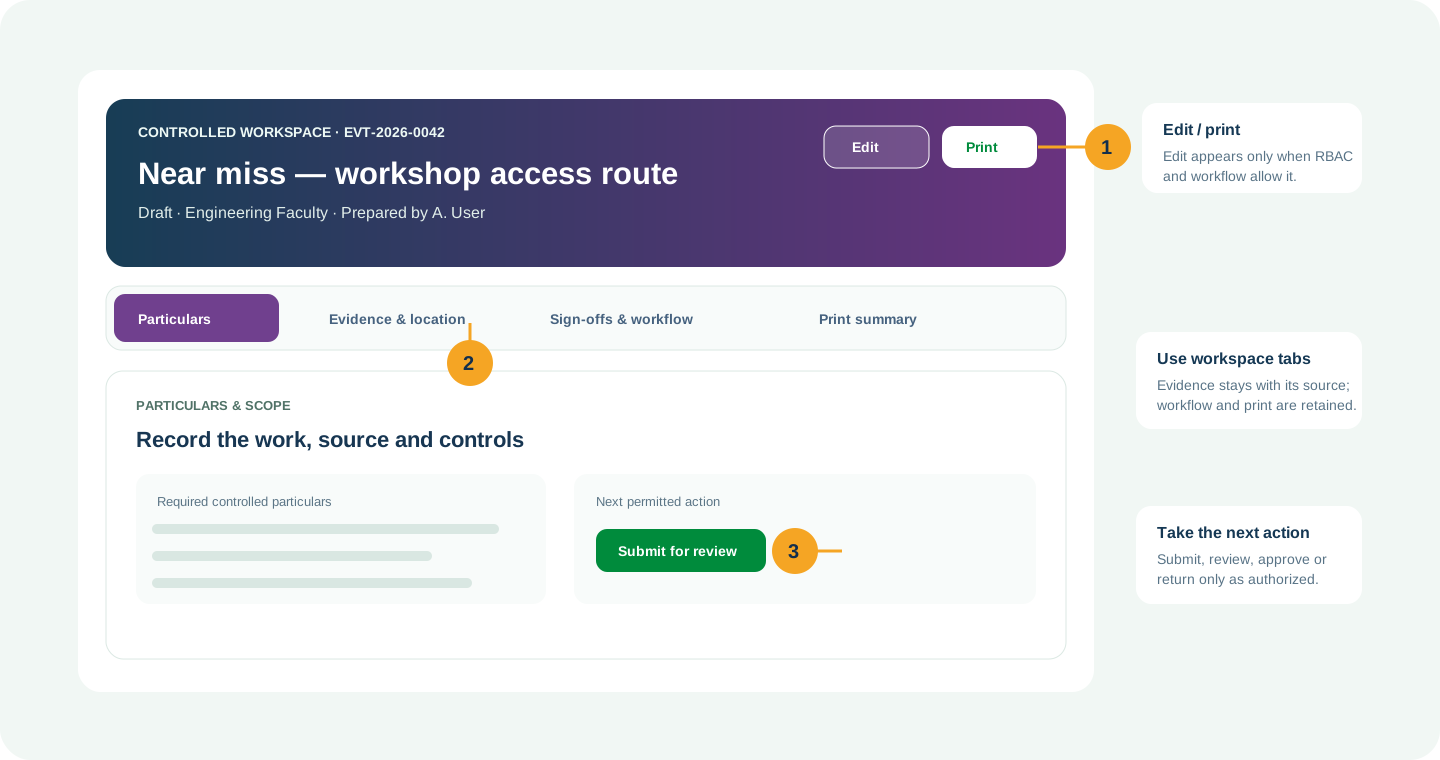
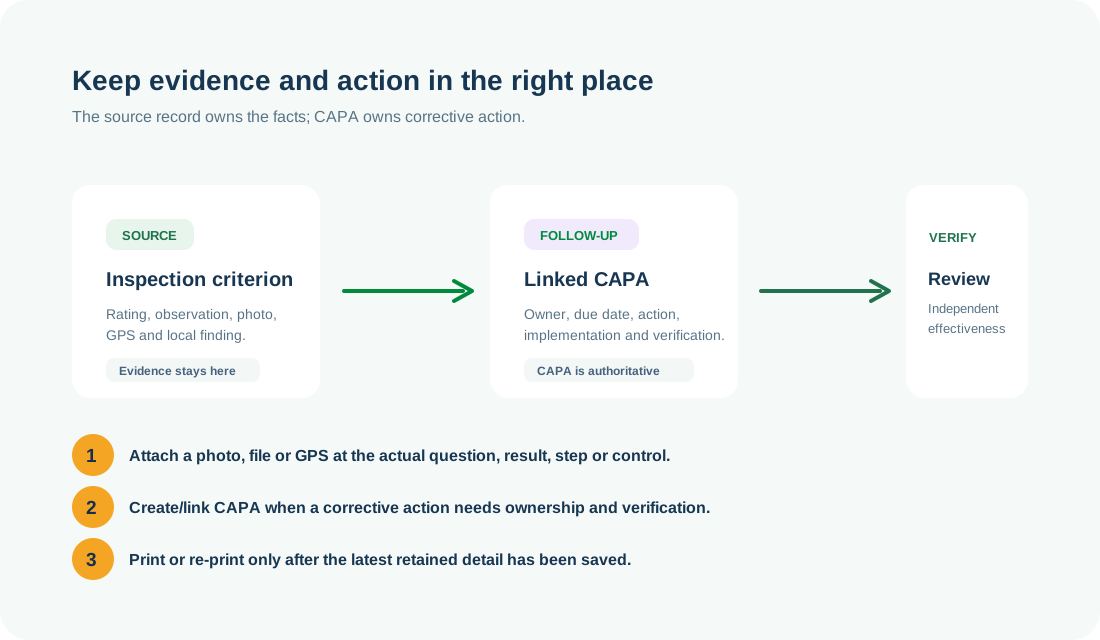
COMMON CONTROL PATTERN
Use the right workspace for the next action
NEED HELP?
Share the record reference, workspace URL and displayed error reference.
Do not include restricted medical, identity or personal data in a support request.