 HSE.myUser Guide
HSE.my · PUBLIC USER GUIDE
People & occupational health
Manage occupational hygiene, exposure, health programmes and competency evidence with appropriate confidentiality.
Search this category by module, function, role or example scenario.
HEALTH
People & occupational health
Manage occupational hygiene, exposure, health programmes and competency evidence with appropriate confidentiality.
01 HEALTHChemicalsControl chemical identity, classification, location, quantity and inventory movement.
What you can do
- Create or amend the record while your role and the current workflow state permit it.
- Capture the controlled particulars: Organization Unit, Title, Description, CAS number.
- Add source-specific retained details, evidence and location where applicable.
- Submit, review, approve, print or supersede through the controlled workflow.
Authorized role examples
HSE Manager, Hygiene Coordinator, Competent Assessor, Occupational Health Practitioner and Calibration Coordinator. Roles must be active and scoped to the relevant organization unit.
Example scenario
Example: A site needs to control chemical identity, classification, location, quantity and inventory movement The authorized user opens Chemicals, completes the controlled record and follows the required workflow.
ANNOTATED CLICK GUIDE
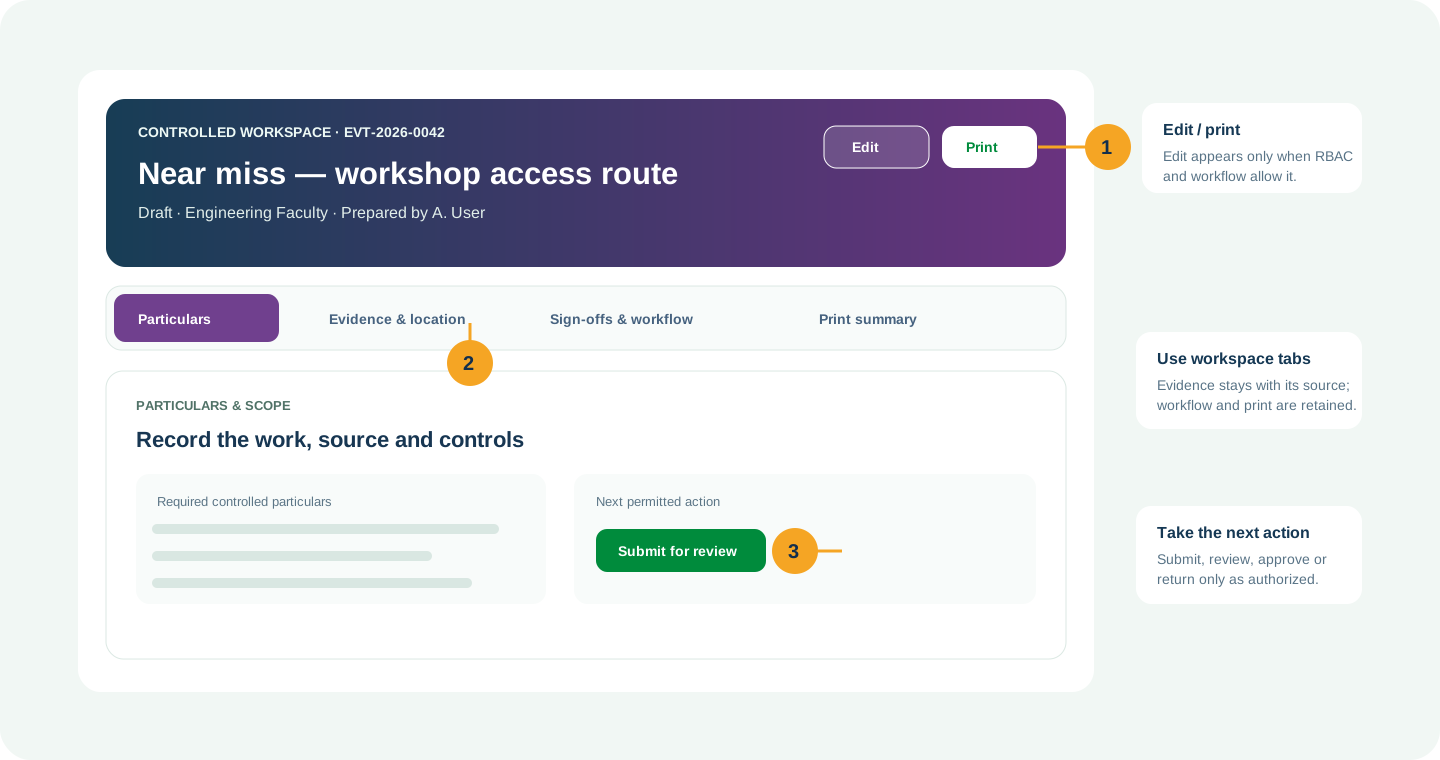
Complete the active tab, then use the highlighted action only when your role and workflow state allow it.


/workspace/health/chemicals- Tap Health in the bottom navigation, or tap More to open the module picker.
- Use search in the module picker, then select Chemicals.
- On the register, tap Open Workspace for the record or use New only when your role allows it.
Hard delete is never the normal lifecycle for a controlled record. Once used, submitted, approved, linked, printed or evidenced, use amendment, revision, void, retirement, archive or supersede with a reason.
02 HEALTHSafety Data SheetsMaintain approved, language-appropriate and current SDS versions linked to chemicals.
What you can do
- Create or amend the record while your role and the current workflow state permit it.
- Capture the controlled particulars: Organization Unit, Title, Description, Version.
- Add source-specific retained details, evidence and location where applicable.
- Submit, review, approve, print or supersede through the controlled workflow.
Authorized role examples
HSE Manager, Hygiene Coordinator, Competent Assessor, Occupational Health Practitioner and Calibration Coordinator. Roles must be active and scoped to the relevant organization unit.
Example scenario
Example: A site needs to maintain approved, language-appropriate and current SDS versions linked to chemicals The authorized user opens Safety Data Sheets, completes the controlled record and follows the required workflow.
ANNOTATED CLICK GUIDE
Complete the active tab, then use the highlighted action only when your role and workflow state allow it.


/workspace/health/sds- Tap Health in the bottom navigation, or tap More to open the module picker.
- Use search in the module picker, then select Safety Data Sheets.
- On the register, tap Open Workspace for the record or use New only when your role allows it.
Hard delete is never the normal lifecycle for a controlled record. Once used, submitted, approved, linked, printed or evidenced, use amendment, revision, void, retirement, archive or supersede with a reason.
03 HEALTHCHRARecord competent-person chemical health-risk assessment, exposure groups and recommendations.
What you can do
- Create or amend the record while your role and the current workflow state permit it.
- Capture the controlled particulars: Organization Unit, Title, Description, CHRA assessor credential.
- Add source-specific retained details, evidence and location where applicable.
- Submit, review, approve, print or supersede through the controlled workflow.
Authorized role examples
HSE Manager, Hygiene Coordinator, Competent Assessor, Occupational Health Practitioner and Calibration Coordinator. Roles must be active and scoped to the relevant organization unit.
Example scenario
Example: A site needs to record competent-person chemical health-risk assessment, exposure groups and recommendations The authorized user opens CHRA, completes the controlled record and follows the required workflow.
ANNOTATED CLICK GUIDE
Complete the active tab, then use the highlighted action only when your role and workflow state allow it.


/workspace/health/chra- Tap Health in the bottom navigation, or tap More to open the module picker.
- Use search in the module picker, then select CHRA.
- On the register, tap Open Workspace for the record or use New only when your role allows it.
Hard delete is never the normal lifecycle for a controlled record. Once used, submitted, approved, linked, printed or evidenced, use amendment, revision, void, retirement, archive or supersede with a reason.
04 HEALTHExposure and SamplingPlan calibrated industrial-hygiene sampling and record traceable laboratory results.
What you can do
- Create or amend the record while your role and the current workflow state permit it.
- Capture the controlled particulars: Organization Unit, Title, Description, Related CHRA.
- Add source-specific retained details, evidence and location where applicable.
- Submit, review, approve, print or supersede through the controlled workflow.
Authorized role examples
HSE Manager, Hygiene Coordinator, Competent Assessor, Occupational Health Practitioner and Calibration Coordinator. Roles must be active and scoped to the relevant organization unit.
Example scenario
Example: A site needs to plan calibrated industrial-hygiene sampling and record traceable laboratory results The authorized user opens Exposure and Sampling, completes the controlled record and follows the required workflow.
ANNOTATED CLICK GUIDE
Complete the active tab, then use the highlighted action only when your role and workflow state allow it.


/workspace/health/exposure-sampling- Tap Health in the bottom navigation, or tap More to open the module picker.
- Use search in the module picker, then select Exposure and Sampling.
- On the register, tap Open Workspace for the record or use New only when your role allows it.
Hard delete is never the normal lifecycle for a controlled record. Once used, submitted, approved, linked, printed or evidenced, use amendment, revision, void, retirement, archive or supersede with a reason.
05 HEALTHNoise Risk AssessmentSeparate self-screening from competent professional noise-risk assessment.
What you can do
- Create or amend the record while your role and the current workflow state permit it.
- Capture the controlled particulars: Organization Unit, Title, Description, Assessment level.
- Add source-specific retained details, evidence and location where applicable.
- Submit, review, approve, print or supersede through the controlled workflow.
Authorized role examples
HSE Manager, Hygiene Coordinator, Competent Assessor, Occupational Health Practitioner and Calibration Coordinator. Roles must be active and scoped to the relevant organization unit.
Example scenario
Example: A site needs to separate self-screening from competent professional noise-risk assessment The authorized user opens Noise Risk Assessment, completes the controlled record and follows the required workflow.
ANNOTATED CLICK GUIDE
Complete the active tab, then use the highlighted action only when your role and workflow state allow it.


/workspace/health/nra- Tap Health in the bottom navigation, or tap More to open the module picker.
- Use search in the module picker, then select Noise Risk Assessment.
- On the register, tap Open Workspace for the record or use New only when your role allows it.
Hard delete is never the normal lifecycle for a controlled record. Once used, submitted, approved, linked, printed or evidenced, use amendment, revision, void, retirement, archive or supersede with a reason.
06 HEALTHErgonomic Risk AssessmentControl initial and advanced ergonomic assessments with professional status made explicit.
What you can do
- Create or amend the record while your role and the current workflow state permit it.
- Capture the controlled particulars: Organization Unit, Title, Description, Assessment level.
- Add source-specific retained details, evidence and location where applicable.
- Submit, review, approve, print or supersede through the controlled workflow.
Authorized role examples
HSE Manager, Hygiene Coordinator, Competent Assessor, Occupational Health Practitioner and Calibration Coordinator. Roles must be active and scoped to the relevant organization unit.
Example scenario
Example: A site needs to control initial and advanced ergonomic assessments with professional status made explicit The authorized user opens Ergonomic Risk Assessment, completes the controlled record and follows the required workflow.
ANNOTATED CLICK GUIDE
Complete the active tab, then use the highlighted action only when your role and workflow state allow it.


/workspace/health/era- Tap Health in the bottom navigation, or tap More to open the module picker.
- Use search in the module picker, then select Ergonomic Risk Assessment.
- On the register, tap Open Workspace for the record or use New only when your role allows it.
Hard delete is never the normal lifecycle for a controlled record. Once used, submitted, approved, linked, printed or evidenced, use amendment, revision, void, retirement, archive or supersede with a reason.
07 HEALTHIndoor Air QualityGuide inspection, professional assessment, rectification and independent verification.
What you can do
- Create or amend the record while your role and the current workflow state permit it.
- Capture the controlled particulars: Organization Unit, Title, Description, Assessment level.
- Add source-specific retained details, evidence and location where applicable.
- Submit, review, approve, print or supersede through the controlled workflow.
Authorized role examples
HSE Manager, Hygiene Coordinator, Competent Assessor, Occupational Health Practitioner and Calibration Coordinator. Roles must be active and scoped to the relevant organization unit.
Example scenario
Example: A site needs to guide inspection, professional assessment, rectification and independent verification The authorized user opens Indoor Air Quality, completes the controlled record and follows the required workflow.
ANNOTATED CLICK GUIDE
Complete the active tab, then use the highlighted action only when your role and workflow state allow it.


/workspace/health/iaq- Tap Health in the bottom navigation, or tap More to open the module picker.
- Use search in the module picker, then select Indoor Air Quality.
- On the register, tap Open Workspace for the record or use New only when your role allows it.
Hard delete is never the normal lifecycle for a controlled record. Once used, submitted, approved, linked, printed or evidenced, use amendment, revision, void, retirement, archive or supersede with a reason.
08 HEALTHHealth SurveillanceManage exposure-based surveillance programs without exposing clinical payloads.
What you can do
- Create or amend the record while your role and the current workflow state permit it.
- Capture the controlled particulars: Organization Unit, Title, Description, Surveillance type.
- Add source-specific retained details, evidence and location where applicable.
- Submit, review, approve, print or supersede through the controlled workflow.
Authorized role examples
HSE Manager, Hygiene Coordinator, Competent Assessor, Occupational Health Practitioner and Calibration Coordinator. Roles must be active and scoped to the relevant organization unit.
Example scenario
Example: A site needs to manage exposure-based surveillance programs without exposing clinical payloads The authorized user opens Health Surveillance, completes the controlled record and follows the required workflow.
ANNOTATED CLICK GUIDE
Complete the active tab, then use the highlighted action only when your role and workflow state allow it.


/workspace/health/health-surveillance- Tap Health in the bottom navigation, or tap More to open the module picker.
- Use search in the module picker, then select Health Surveillance.
- On the register, tap Open Workspace for the record or use New only when your role allows it.
Hard delete is never the normal lifecycle for a controlled record. Once used, submitted, approved, linked, printed or evidenced, use amendment, revision, void, retirement, archive or supersede with a reason.
09 HEALTHRestricted Medical RecordsStore minimum necessary clinical records accessible only to authorized occupational-health practitioners.
What you can do
- Access only the minimum clinical record information needed for your authorized work.
- Keep clinical details within the restricted practitioner workspace.
- Do not export, print or share restricted health information outside policy.
Authorized role examples
Authorized occupational health practitioner only; access is restricted by role and organization-unit scope.
Example scenario
Example: A site needs to store minimum necessary clinical records accessible only to authorized occupational-health practitioners The authorized user opens Restricted Medical Records, completes the controlled record and follows the required workflow.
ANNOTATED CLICK GUIDE
Only authorized occupational-health users can open the protected record; do not expose clinical information in general workspaces.


/workspace/health/medical-records- Tap Health in the bottom navigation, or tap More to open the module picker.
- Use search in the module picker, then select Restricted Medical Records.
- On the register, tap Open Workspace for the record or use New only when your role allows it.
Hard delete is never the normal lifecycle for a controlled record. Once used, submitted, approved, linked, printed or evidenced, use amendment, revision, void, retirement, archive or supersede with a reason.
10 HEALTHFit-for-WorkPublish only work-fitness status and restrictions while clinical findings remain restricted.
What you can do
- Record work-status suitability only; avoid unnecessary clinical detail.
- Use authorized practitioner/reviewer workflow and retain decision history.
- Link to readiness where policy requires, without exposing medical information to general users.
Authorized role examples
Authorized occupational health practitioner and permitted readiness reviewer; no general clinical-data access.
Example scenario
Example: A site needs to publish only work-fitness status and restrictions while clinical findings remain restricted The authorized user opens Fit-for-Work, completes the controlled record and follows the required workflow.
ANNOTATED CLICK GUIDE
Record only the permitted work-status information; clinical detail stays in the restricted practitioner workspace.


/workspace/health/fit-for-work- Tap Health in the bottom navigation, or tap More to open the module picker.
- Use search in the module picker, then select Fit-for-Work.
- On the register, tap Open Workspace for the record or use New only when your role allows it.
Hard delete is never the normal lifecycle for a controlled record. Once used, submitted, approved, linked, printed or evidenced, use amendment, revision, void, retirement, archive or supersede with a reason.
11 HEALTHProfessional CredentialsValidate assessor scope, registration and validity before professional work is accepted.
What you can do
- Create or amend the record while your role and the current workflow state permit it.
- Capture the controlled particulars: Organization Unit, Title, Description, Professional.
- Add source-specific retained details, evidence and location where applicable.
- Submit, review, approve, print or supersede through the controlled workflow.
Authorized role examples
HSE Manager, Hygiene Coordinator, Competent Assessor, Occupational Health Practitioner and Calibration Coordinator. Roles must be active and scoped to the relevant organization unit.
Example scenario
Example: A site needs to validate assessor scope, registration and validity before professional work is accepted The authorized user opens Professional Credentials, completes the controlled record and follows the required workflow.
ANNOTATED CLICK GUIDE
Complete the active tab, then use the highlighted action only when your role and workflow state allow it.


/workspace/health/professional-credentials- Tap Health in the bottom navigation, or tap More to open the module picker.
- Use search in the module picker, then select Professional Credentials.
- On the register, tap Open Workspace for the record or use New only when your role allows it.
Hard delete is never the normal lifecycle for a controlled record. Once used, submitted, approved, linked, printed or evidenced, use amendment, revision, void, retirement, archive or supersede with a reason.
12 HEALTHCalibration ManagementControl instrument identity, calibration certificates, traceability and expiry.
What you can do
- Create or amend the record while your role and the current workflow state permit it.
- Capture the controlled particulars: Organization Unit, Title, Description, Instrument reference.
- Add source-specific retained details, evidence and location where applicable.
- Submit, review, approve, print or supersede through the controlled workflow.
Authorized role examples
HSE Manager, Hygiene Coordinator, Competent Assessor, Occupational Health Practitioner and Calibration Coordinator. Roles must be active and scoped to the relevant organization unit.
Example scenario
Example: A site needs to control instrument identity, calibration certificates, traceability and expiry The authorized user opens Calibration Management, completes the controlled record and follows the required workflow.
ANNOTATED CLICK GUIDE
Complete the active tab, then use the highlighted action only when your role and workflow state allow it.


/workspace/health/calibrations- Tap Health in the bottom navigation, or tap More to open the module picker.
- Use search in the module picker, then select Calibration Management.
- On the register, tap Open Workspace for the record or use New only when your role allows it.
Hard delete is never the normal lifecycle for a controlled record. Once used, submitted, approved, linked, printed or evidenced, use amendment, revision, void, retirement, archive or supersede with a reason.
No module or function matches this search. Try a role, module name or action such as “print”, “evidence” or “CAPA”.
COMMON CONTROL PATTERN
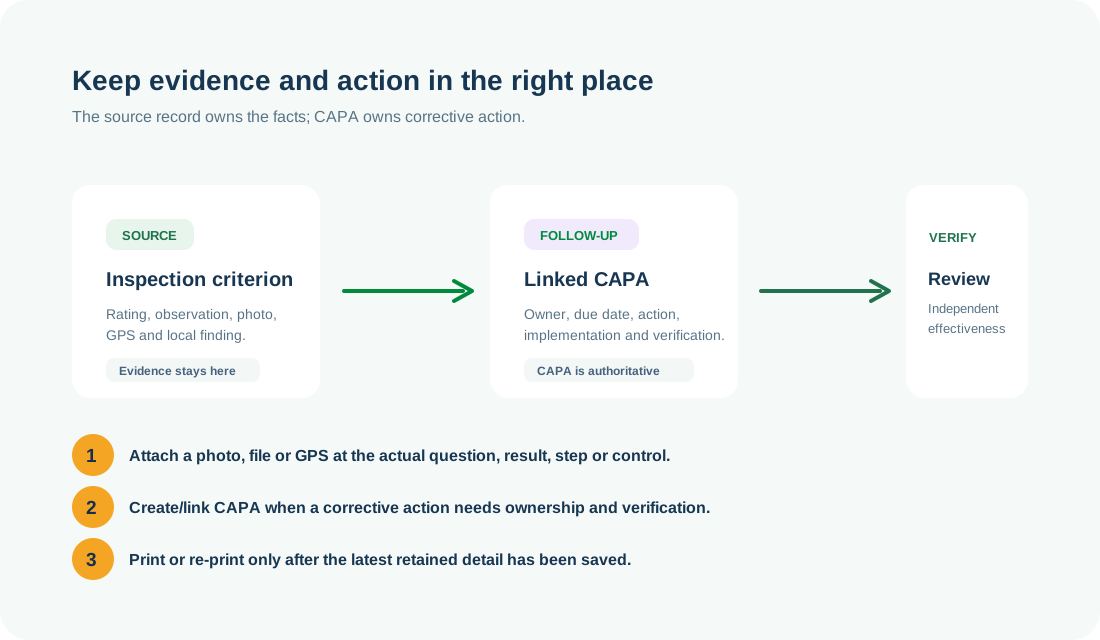
Use the right workspace for the next action
NEED HELP?
Share the record reference, workspace URL and displayed error reference.
Do not include restricted medical, identity or personal data in a support request.